Finding the right typography for children's products or playful branding can be tricky. You need something bold enough to catch the eye but clean enough to read easily. The Comic Books Font solves this by offering a unique double-outline style. It gives you a hollow, inline detail that is perfect for adding multiple colors to your text. Whether you are making stickers, designing t-shirts for a print-on-demand shop, or creating headers for a kids' blog, this typeface brings a vibrant, energetic feel to your layout. If you want to see more examples of how this specific style works in practice, you can browse the rest of the playful typography collection.
What makes a good display font for kids' projects?
When designing for a younger audience, readability and fun are the main priorities. A heavy, solid block of text can look too serious or overwhelming on a small book cover. Outline fonts break up that visual weight. The hollow structure lets you play with contrasting background colors or add a secondary shade inside the letters.
If you are working on a picture book cover or a toy package, pairing this bold style with hand-drawn lettering for the subheadings creates a nice visual hierarchy. You keep the main title loud and playful, while the smaller text remains easy to read. For a slightly different vibe, you might mix in some cozy, storybook-style letters to soften the overall look and make the design feel more approachable for toddlers and young readers.
How do you use hollow fonts for print-on-demand and crafting?
Crafters and print-on-demand sellers appreciate outline fonts because they save ink and look great on physical products. When cutting vinyl for a tumbler, laptop decal, or car sticker, a hollow font reduces the amount of material you use. It also makes the weeding process much easier since there are fewer tiny, intricate pieces to pull away.
For apparel, a double-outline design prints beautifully on both dark and light garments using direct-to-garment or screen printing methods. You can fill the inside of the letters with a bright pattern, a halftone dot effect, or a solid contrasting color. If you are designing a sticker sheet, try adding a thick white border around the outside of the text, and fill the inner hollow space with a vibrant gradient.
Sometimes you want a more energetic feel for your merchandise, especially for sports or active wear. In those cases, swapping to bouncy, animated text can give your products a more dynamic, movement-filled appearance that appeals to a slightly older demographic.
Which design software works best for layering text?
To get the most out of a double-outline typeface, you need software that handles text layering and path manipulation well. Here is how different programs handle this specific style:
- Adobe Illustrator: This is the best choice for converting your text to outlines. Once converted, you can use the offset path tool to create even thicker borders or adjust the inner hollow space manually.
- Canva: While more limited in path editing, Canva still lets you layer text boxes. You can place a solid color text box directly behind your outline text to create a quick drop-shadow or fill effect without needing advanced vector skills.
- Cricut Design Space and Silhouette Studio: For physical crafters, these programs allow you to weld and slice shapes. You can easily separate the inner and outer lines of the font to cut them from different colored vinyl sheets and layer them physically.
If you ever need to step away from the comic aesthetic and try something completely different for a client, looking into retro-inspired display options can give your design portfolio a nice variety and show your versatility.
Quick checklist for your next typography project
Before you finalize your design and send it to print or cut, run through these quick steps to ensure your text looks its best.
- Check the kerning: Outline fonts can look disconnected if the spacing is too wide. Adjust the letter spacing so the outer lines almost touch.
- Test the contrast: Make sure the color inside the hollow space contrasts well with the outer stroke. Low contrast makes the text hard to read from a distance.
- Convert to outlines: Always convert your text to vector paths before sending the file to a commercial printer to avoid missing font errors.
- Do a test cut: If you are using a vinyl cutter, cut a small section first to ensure the inner lines are thick enough to stick to the transfer tape.
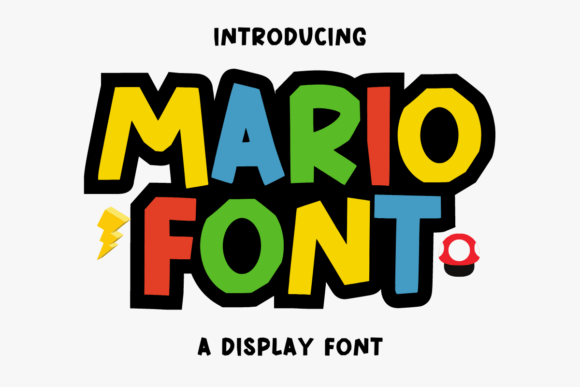 Mario Font: Retro Typography for Creative Projects
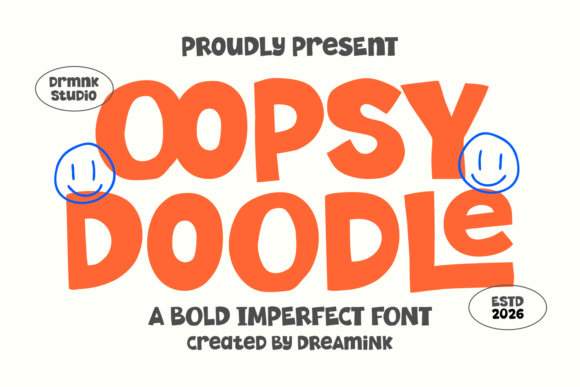 Oopsy Doodle Font: Playful Lettering for Creative Projects
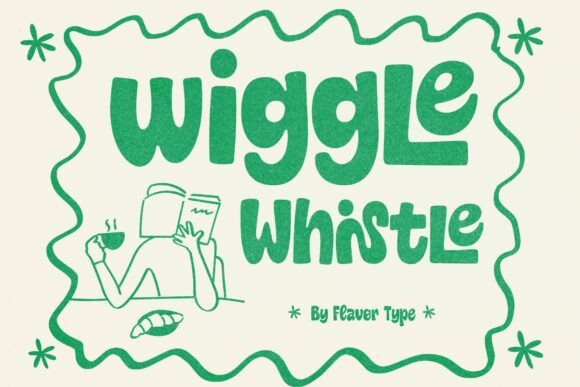 Wiggle Whistle Font: Playful Typography for Fun Projects
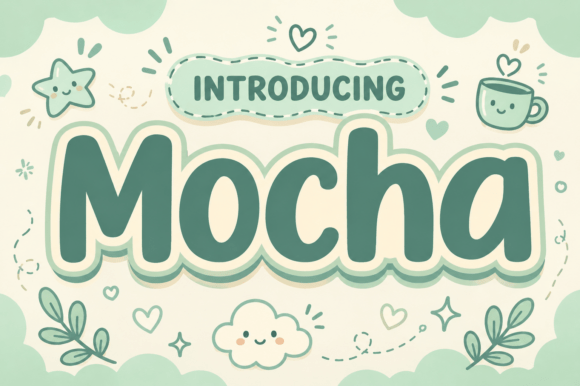 Motcha Font: Creative Typography for Your Projects
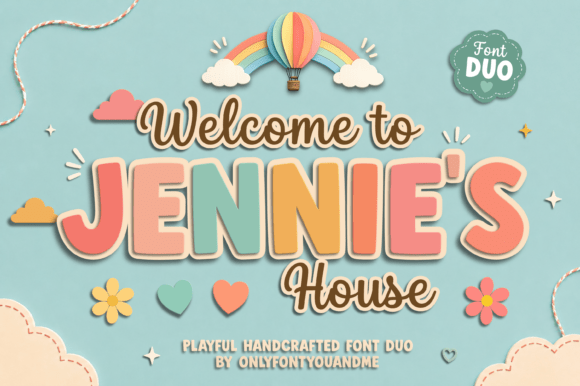 Jennies House Font: Rustic Charm for Creative Designs
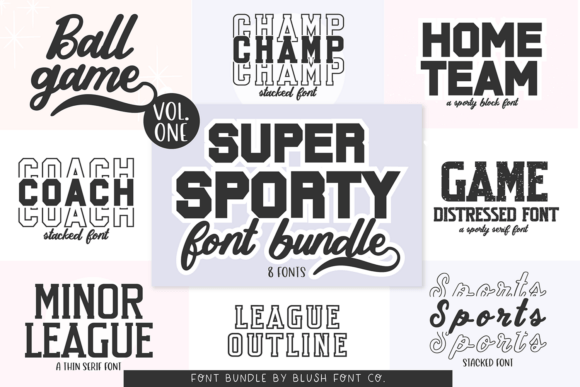 Super Sport Bundle Font for Dynamic Athletic Designs